Portrait Post Production with Adobe Lightroom and Photoshop Part 2

Well we did the initial corrections and used the healing brush.  Now its time for skin smoothing and the most controversial technique, skin blurring.

Most people now say don’t use it, but used carefully it can produce a very nice effect.
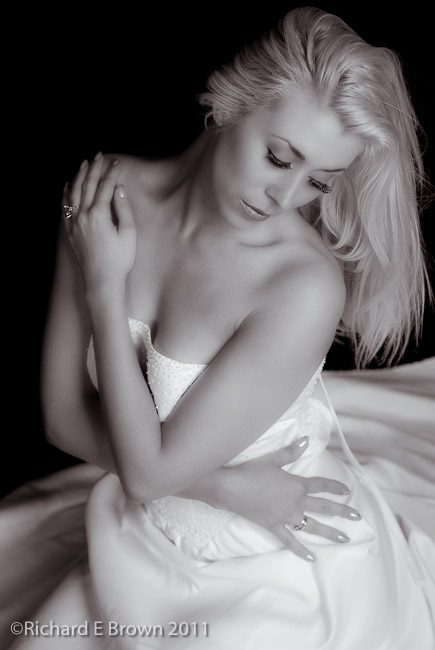
I still use it for many of my images, while it can destroy texture, its fast and can produce images that your client will love.
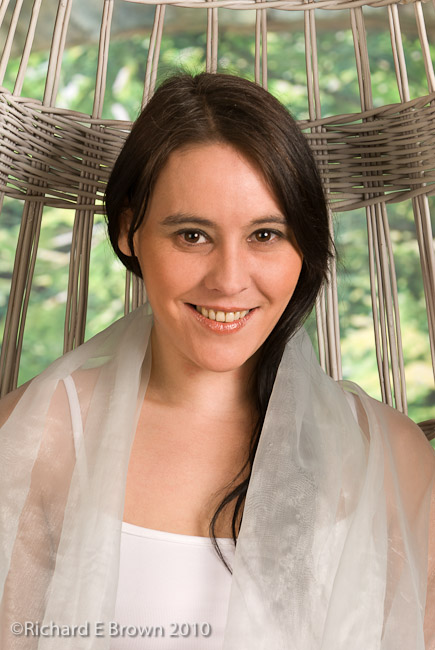
If you remember from our part 1 post, we had ended up with the image above.  The major imperfections have been corrected (see Part One) now its time for the skin blur.

Using photoshop duplicate the layer (Command-J on the Mac), don’t work on the original layer.  If you have multiple layers all contributing to the final image then use Shift-Option-Command-E (On the Mac) to produce a new layer based on the previous layers.

From the menu select filter-blur-Gaussian Blur.  I tend to use a Radius of 20 pixels but feel free to experiement.

What you see above is the blur effect, now obviously this is totally unsuitable, so add a layer mask via Option-(add layer mask button).  This masks out the effect of the blur and you get back with what you had before you added the blur.

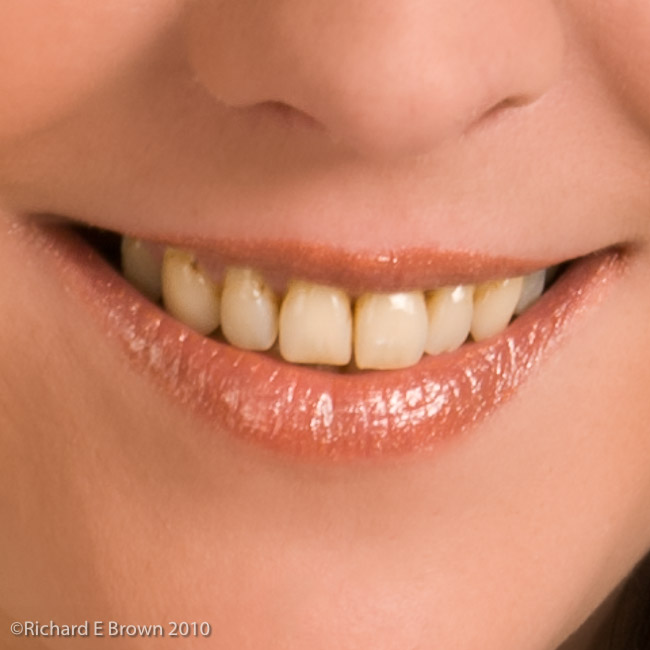
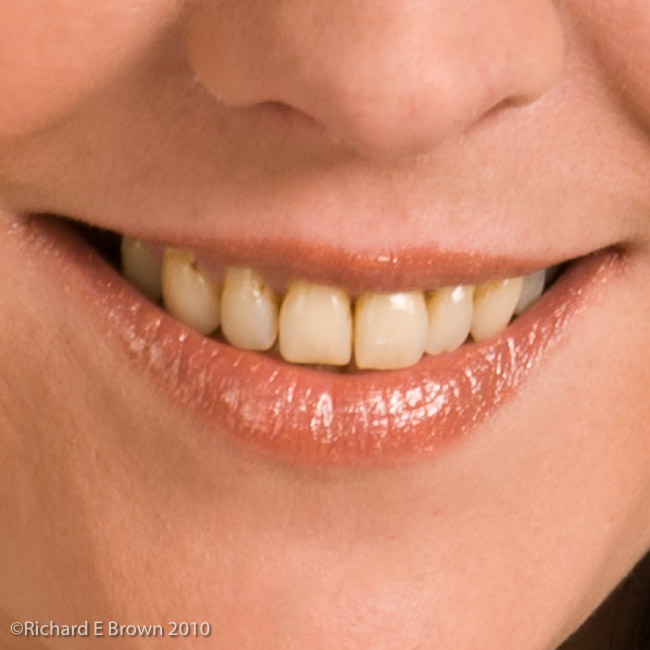
Now you select the layer mask and carefully paint on the mask to remove it where the skin is.  Once that is complete reduce the Opacity to about 40% on the layer and you will have a reasonable effect.

You could now go on to work on the eyes and teeth but the basic work is complete. Once you have it looking like you want its just time to add the sharpening and final tweaks.

Part 3 will see us going back to the beginning, this time we will use techniques to try and preserve the original skin texture.

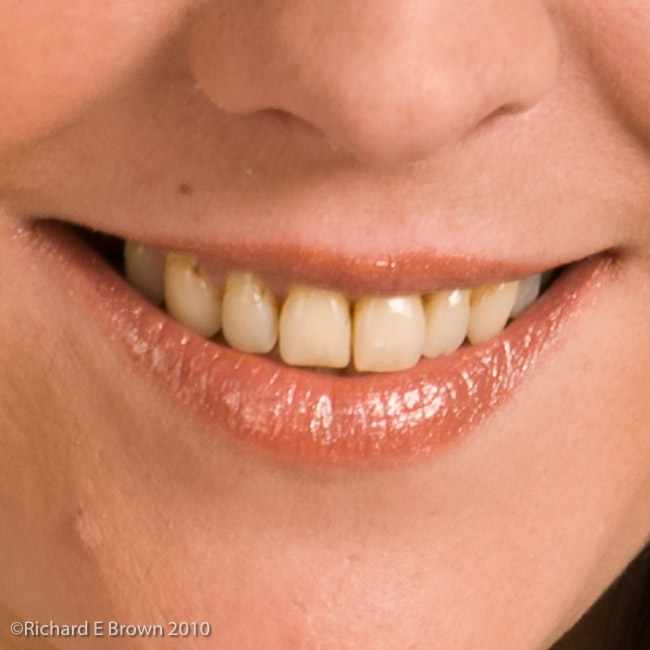
Before and after below:
Special thanks go to Scott Kelby and Kelby Training, thanks guys, these techniques have been stolen shamelessly from you. Thanks for making me a better photographer.


Want to learn photoshop and learn about these techniques in more detail, then check out the Podcast “The Photoshop Guys” and also the website Kelby Training, well worth subscribing to.

Portrait Post Production with Adobe Lightroom and Photoshop Part 1

If you shoot jpeg then what you get out of the camera is generally pretty good.  If you shoot RAW then what you get out is generally not as good looking straight out of the camera, unless you use the Camera manufactures own RAW processing software.

Most of use prefer something a little easier to use and more powerful, such as Apple’s Aperture, Adobe Camera RAW and Adobe’s Lightroom.

RAW files thought have far greater potential and can be processed to give a better image then with jpegs.

The image above is a RAW file taken straight from the camera, with Adobe Lightroom’s default settings.  There are a few blown highlights and the colour temperature is a little low.

It does not take much to tweak the exposure and colour temperature and apply a little sharpening (Sharpening is a topic for another day).

What we have above is much closer to what I saw in the studio.

For many people this is how the photograph ends.  The next steps that can be taken are what many consider to be steps to far.  A betrayal of true photography.  What many people do not know, is that while the next steps have become easier with products like Adobe Photoshop, these techniques where possible in the darkroom and have been with us now nearly a hundred years.

We now have a number of options available to use.  Everyone even the most perfect of models has small imperfections.  A good make artist can make all the difference, but even then things get missed, or the make is either under or over done.

The healing brush to the rescue.  Lightroom and Photoshop both have healing brushes but as I intend to do things with this image that Lightroom cannot do easily I took the decision to take the image into Photoshop.

Using photoshop duplicate the layer (Command-J on the Mac), don’t work on the original layer.  In the above image using the spot healing brush with the mode set to normal but with content aware switched on (CS5 not available in previous versions) the major imperfections in the skin have been removed.  Use a small brush, just bigger then the spot your trying to heal and remember to use a soft edged brush.  If your working on an area close to a boundary like an area of skin next to the hair or the dress, it can make the image look worse.  If this happens just undo and switch from the spot healing brush to the healing brush.  Select from an adjacent area (Option-Click on Mac; Alt-Click on Windows), and then click on the area to heal.  For larger areas, then you will need to resort to patch tool, but be careful to prevent reoccurring pattens from forming.

So with the major imperfections corrected the next step is skin softening, a topic mired in controversy.

There are two major options available to us.  Do we want perfect  flawless skin or something a little more natural.  Both techniques can be taken too far and remove all the texture but one tends to obscure skin texture more then the other.

Part 2 will look at this and use the most controversial technique. Skin blurring.


Want to learn photoshop and learn about these techniques in more detail, then check out the Podcast “The Photoshop Guys” and also the website Kelby Training, well worth subscribing to.
Motorcycle Riders Be Aware

Summer arrives and motorcyclists hit the road, most have not ridden since last September, and as soon as the warm weather arrives they decide to leave their armoured leather jackets and trousers at home, and they ride around in jeans and T-shirts. I have even seen people in Shorts and Flip Flops!

Don’t!

There is a reason it’s called skin graft season.

For more riding tips check out:
Ride it like you stole it!.