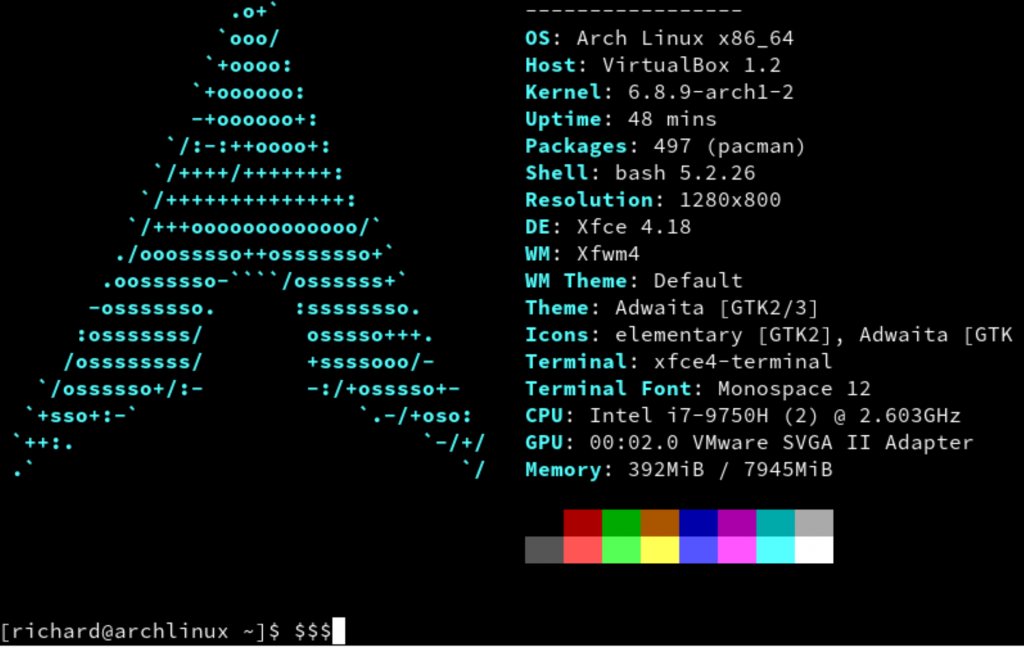
When you have worked in IT as long as I have you tend to collect old computers and laptops. For linux I prefer debian as my daily driver, it’s solid and reliable. Its also fun to run Arch but I think I play too much and break it far too often.
I recently added another classic ThinkPad to my collection to tinker some more with Arch and hit an odd issue. I had just installed Arch with a minimal manual install and the standard kernel. All was working fine, I added and compiled DWM tweaked it a little and all was looking good.
Then I thought I aught to add the LTS version of the kernel as a backup incase of issues.
This is where my problems started.
# pacman -S linux-lts linux-headers
Installed the additional kernel and I updated my grub boot loader
#grub-mkconfig -o /boot/grub/grub.cfg
Then a reboot and I booted into the Long Term Support Kernel, and all looked good. So another reboot and back into the current kernel, and part way thought the boot process the screen went really dim.
Lots of searching through the arch wiki and forums, suggestions such as adding “acpi_backlight=vendor” to the boot loader string, using systemctl to mask the backlight service, but nothing worked.
I removed the LTS kernel and headers, but still the problem persisted. Oh well I had hardly started the build so I wiped, reinstalled both kernel options and the problem remained. I wiped again and just installed the general kernel, now no issues. So installing the LTS kernel definitely breaks something.
Back to the wiki.
https://wiki.archlinux.org/title/Backlight#Kernel_command-line_options
The forums had mentioned Vendor as a setting and Native, both of which I tried with the service masked and unmasked, but goingthrough the wiki I found this:
acpi_backlight=video
acpi_backlight=vendor
acpi_backlight=native
So there are three options for the command. I added the video line, rebooted and problem solved. Remembering the service was still masked so deleting the file in systemd to remove the mask and reboot again. Again normal brightness the problem was solved.