This is going to a highly personal selection and I expect most people to disagree with me.
If I was starting in photography budget not being a concern what would I buy. Well I am going to limit this initially to the two areas that most interest me, street photography and studio portraiture.
Street Photography
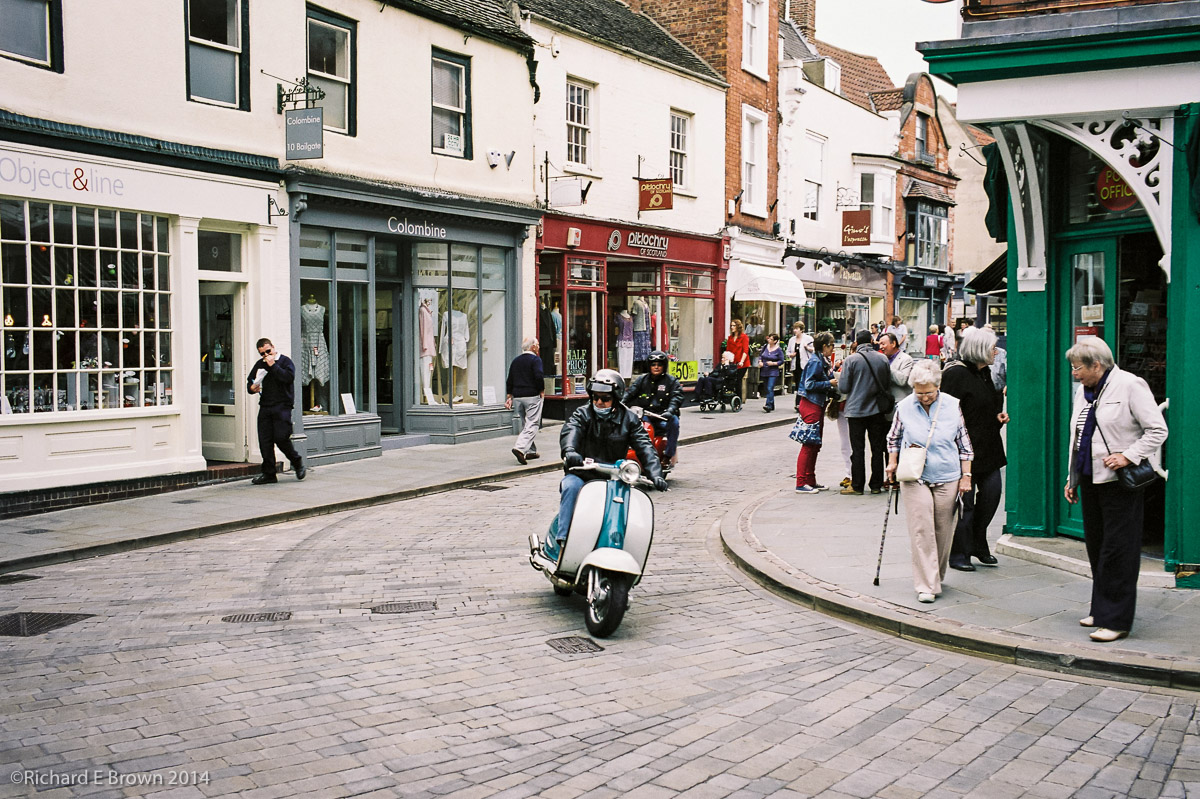
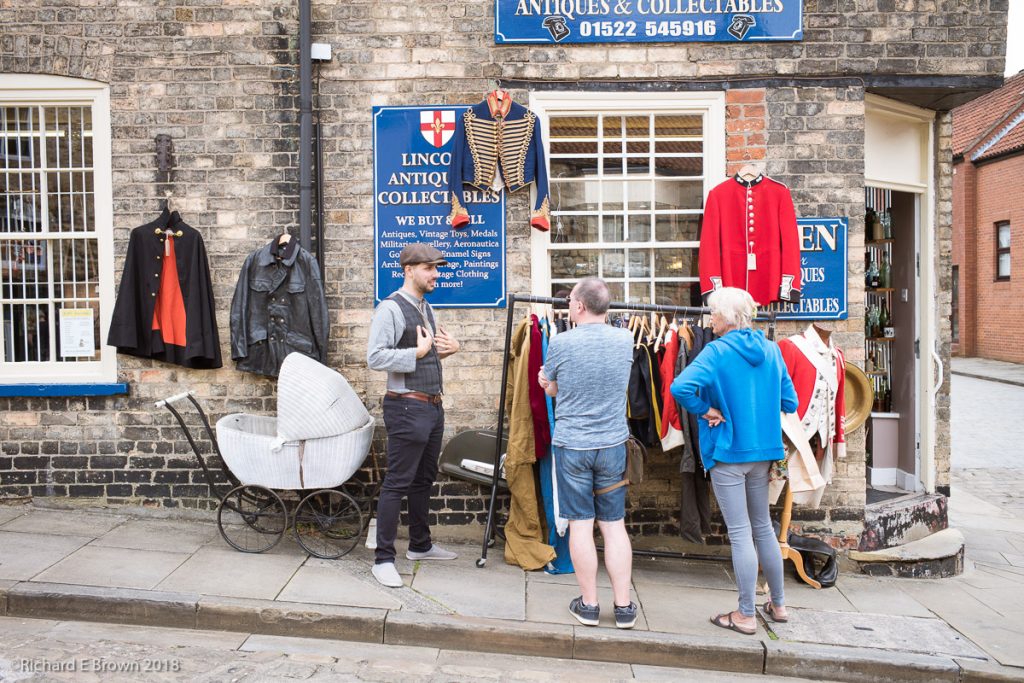
Street photography if fixed lens compact then you have a large choice. The little DX crop Ricoh, Fuji X100, full frame Sony RX1 and the full frame Leica Q would be the cameras I would look at.
If I was after a camera with a little more flexibility, then I would go for Olympus Pen or Leica CL, both very flexible interchangeable len cameras, both being smaller crop factors so giving greater depth of field making zone focus easier.
So what would it be? I think for the flexibility I would pick the Leica CL a little DX crop format camera.
So what about studio work? Well I’ll address that in a few days.
With the recent Apple OS updates and Adobe releasing new version of Adobe Photoshop and Adobe Lightroom, I was left with only one machine my MacPro desktop that could use the new programs.
With the release of the new Apple 16 inch MacBook Pro I had to indulge.
There are a lot of new features to learn in the new Photoshop and Lightroom and having a new laptop means I can play and not be too antisocial by locking myself away in my office using my MacPro.
Tonight I have been playing with the new Texture tool. Its a bit like clarity in the way it deals with high frequency contrast areas but is a bit more delicate.
It makes a great way to soften skin without loosing too much texture in the image.
Applying some negative texture to the skin and a little positive clarity and texture to the hair, eyes, lips and clothes you very quickly get a pleasing image.
My normal route for soft skin is a round trip to Photoshop but this may be quicker and easier and give just as good results.
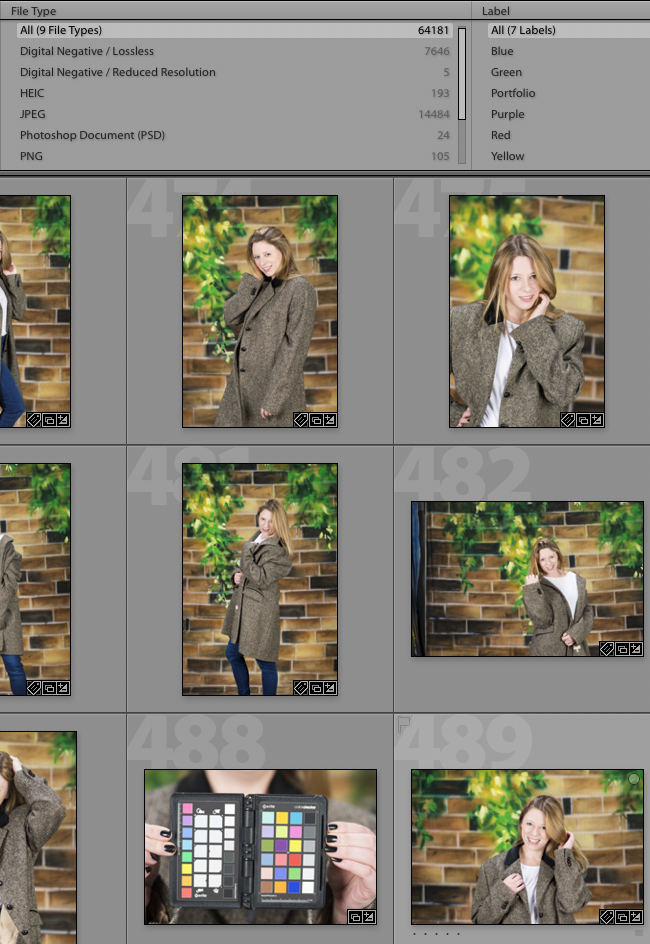
While having a good sort through of my Photographs for 2019, I was surprised to come across a file type I was not expecting.
DNG Negative / Reduced Resolution
What was going on? Well it seems while I was playing with some of my smart phone applications and downloading photographs and syncing back to Adobe Cloud, I had somehow downloaded a few with the app settings not set to download full RAW.
Luckily I had backups and copies but it was a bit worrying. From now on I am going to be much more careful how I import files into Lightroom and ensure I get the full RAW’s all the time.
We have had some hot weather recently and its always a challenge taking photographs in very high contrast situations like this when its really sunny.
Choosing an ISO that maximises your dynamic range is the first thing to remember, and if your shooting portraits professionally in this type of situation then I under expose slightly and use fill in flash. You need a camera with a high sync speed to do this.
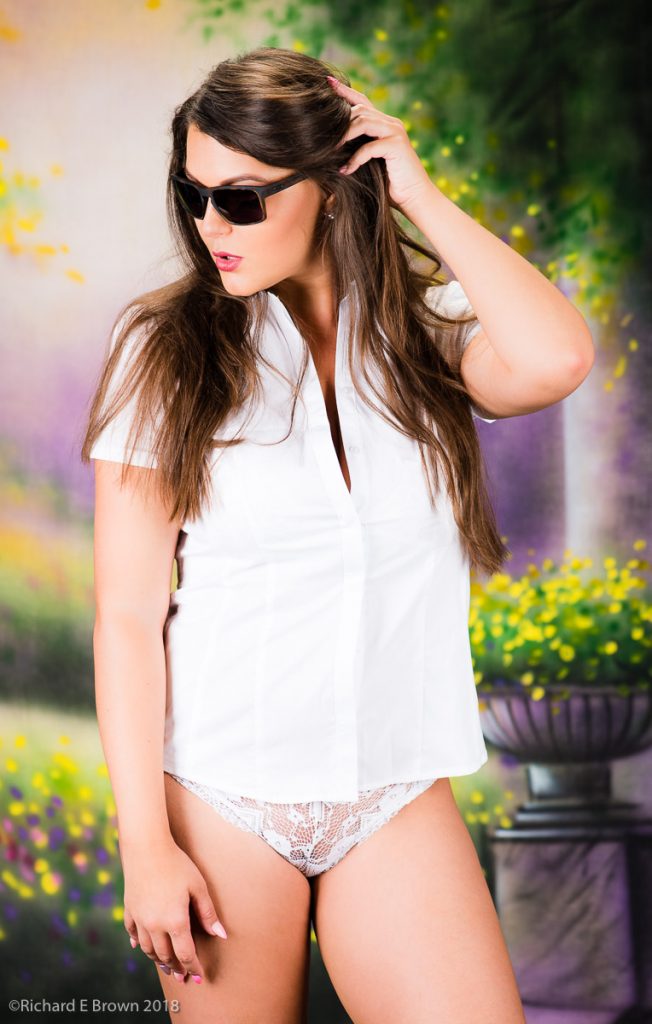
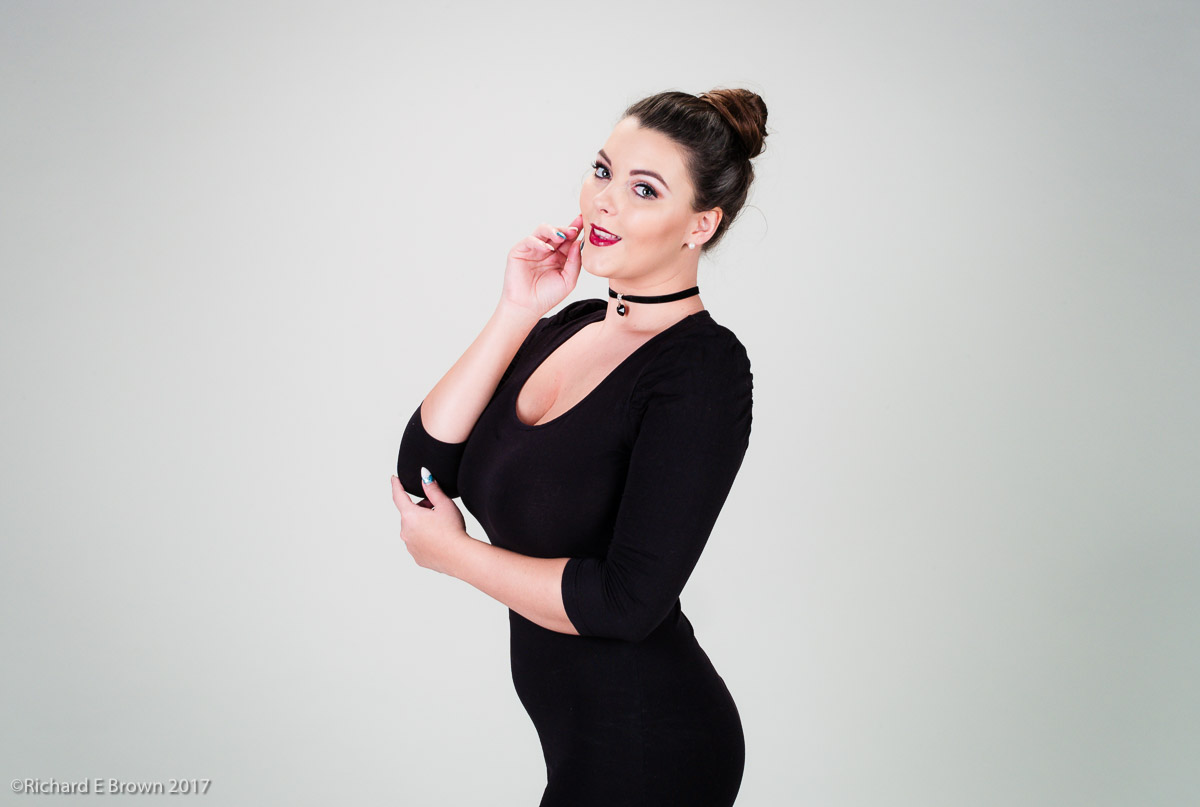
As you might have guessed from my last few posts, I have been experimenting in the studio recently with different backgrounds. The one above is a paper called platinum. Its nearly perfect for taking a white balance reading and one can also easily use photoshop to remove the model and place her on other backgrounds.
We had another update to Adobe Lightroom Mobile and this time they seem be indicating that we now have RAW support for the Mobile version.
This was a big thing for me as I have blogged about in the past. Though Lightroom Mobile already supports DNG, I do want Nikon NEF support.
So I just had to give it a go. I use Lightroom Mobile often to do a quick edit from when I am street shooting using my Leica. The edits are usually just quick adjustments and crops. This time the test was very simple I just grabbed my Nikon D800 and shot a few snaps of the dog and a few flowers in the garden.
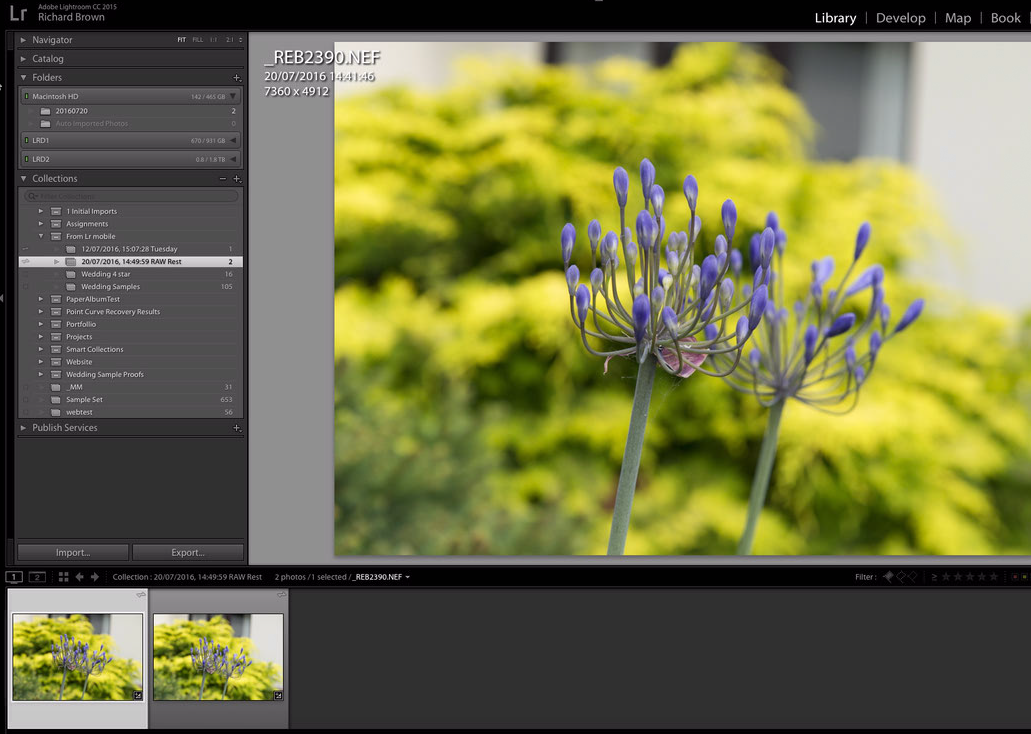
So after a few quick snaps I grabbed my iPad 9.7 Pro and imported the RAW files. All looked good and this worked without issue. I then dived onto my Desktop computer and checked out the ‘From LR mobile’ Collection set.
There I saw my photographs arriving. The question was what format? Lightroom reported them as RAW and I also browsed to the file location in finder to confirm and there my files were. So we now have full RAW support in Lightroom Mobile, thanks Adobe.
A lot of new photographers get very confused about F-Stops. Basically with each F-Stop your reducing by half or doubling the amount of light hitting the film or sensor.
The numbers look odd, but thats because they are ratios of diameter to focal length.
If you want good contrast and soft light and shadow in your studio flash photographs the key is to get the light close to your model.
Straight from Camera – Lightroom Defaults Applied
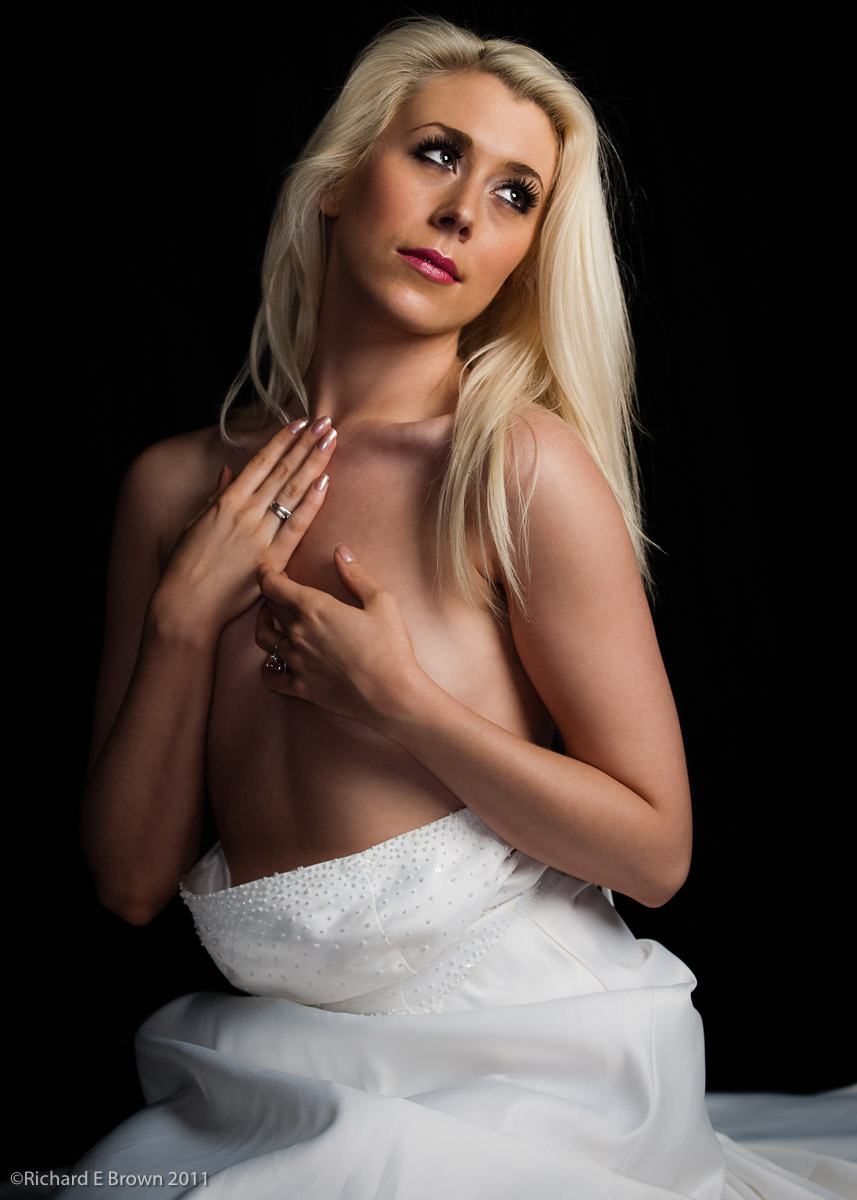
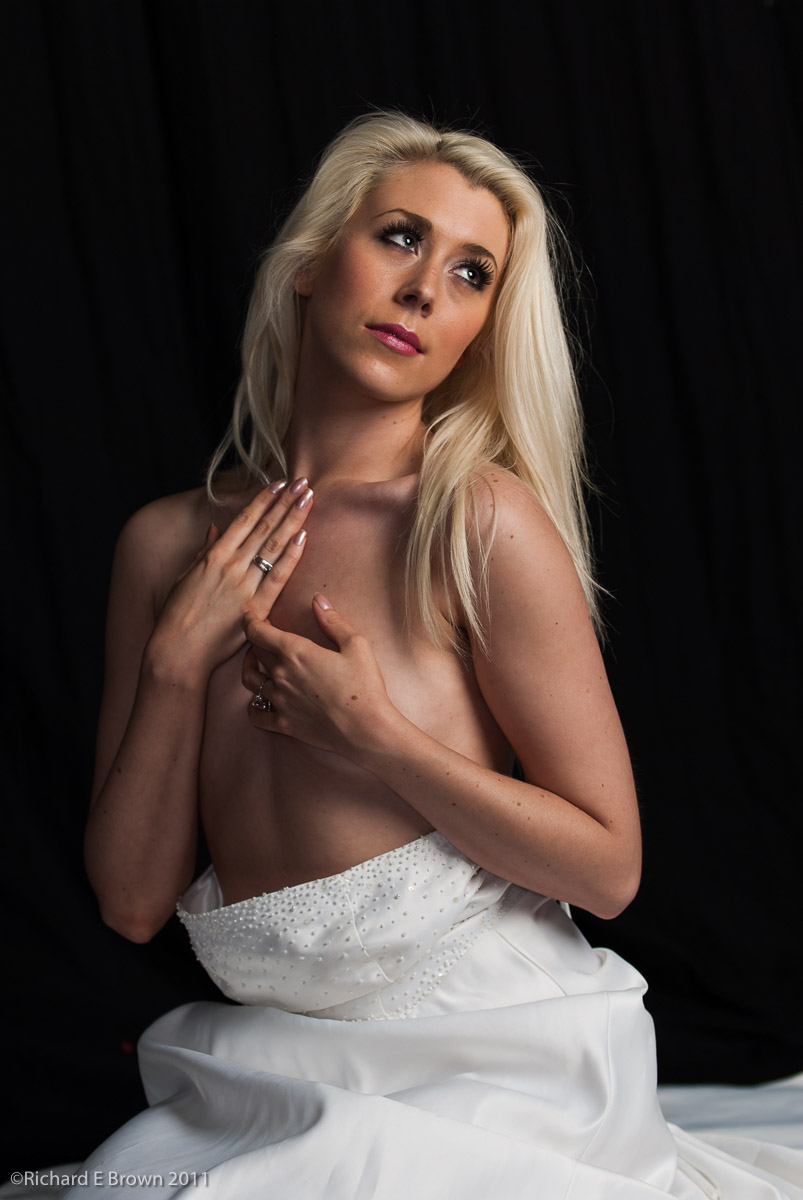
The light here is very close to the model, a very large soft box above the model giving strong directional light, but with very gentle soft shadows, this is caused by the light being so close to the model. The camera was a Nikon D200 with a 70-200mm f/2.8 zoom shot at about 90mm. This shot is straight from camera with my Default Lightroom D200 People pre-set applied. This applies a little sharpening and a mask, a little contrast and some fill. As its stands its pretty good, but I wanted to clean up the skin a little so it needed a round trip to photoshop.
Flattened Contrast
To make the Photoshop work a little easier I dropped the contrast and slightly brightened the image, then it was off to Photoshop.
Photoshop
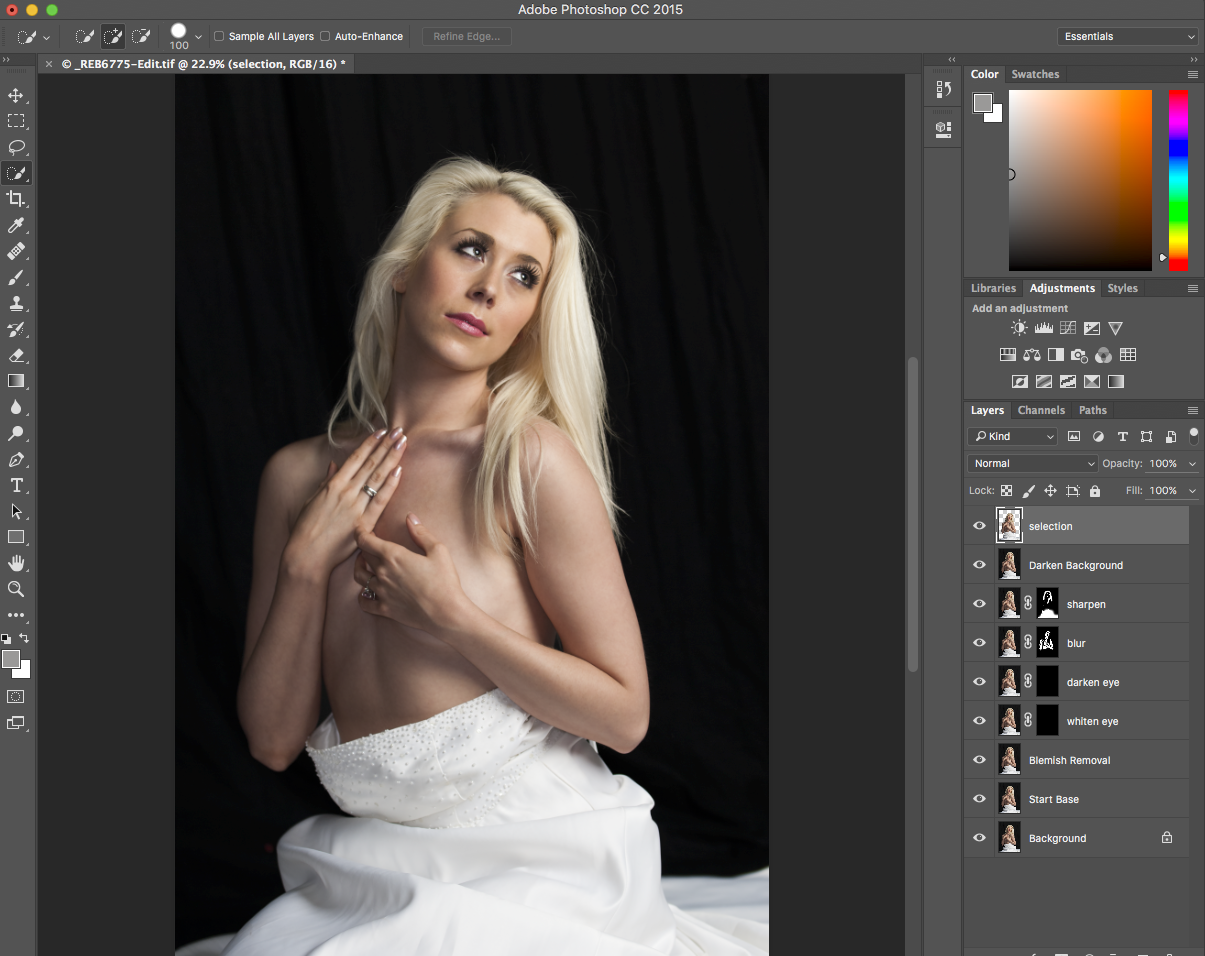
This is an old image but I wanted to see what the latest version of Photoshop could do with it. With the skin cleaned up I whitened the eye and darkened the pupil a little, added a touch of blur to the skin to soften it then darkened the background.
Then back to Lightroom, for a final finish; add contrast, a make the image a touch darker and then crop.
All in all a quick edit and I have to admit Photoshop is getting faster at this kind of thing. Most of this I could have done in Lightroom but taking it to Photoshop and using layers just made it faster and easier.
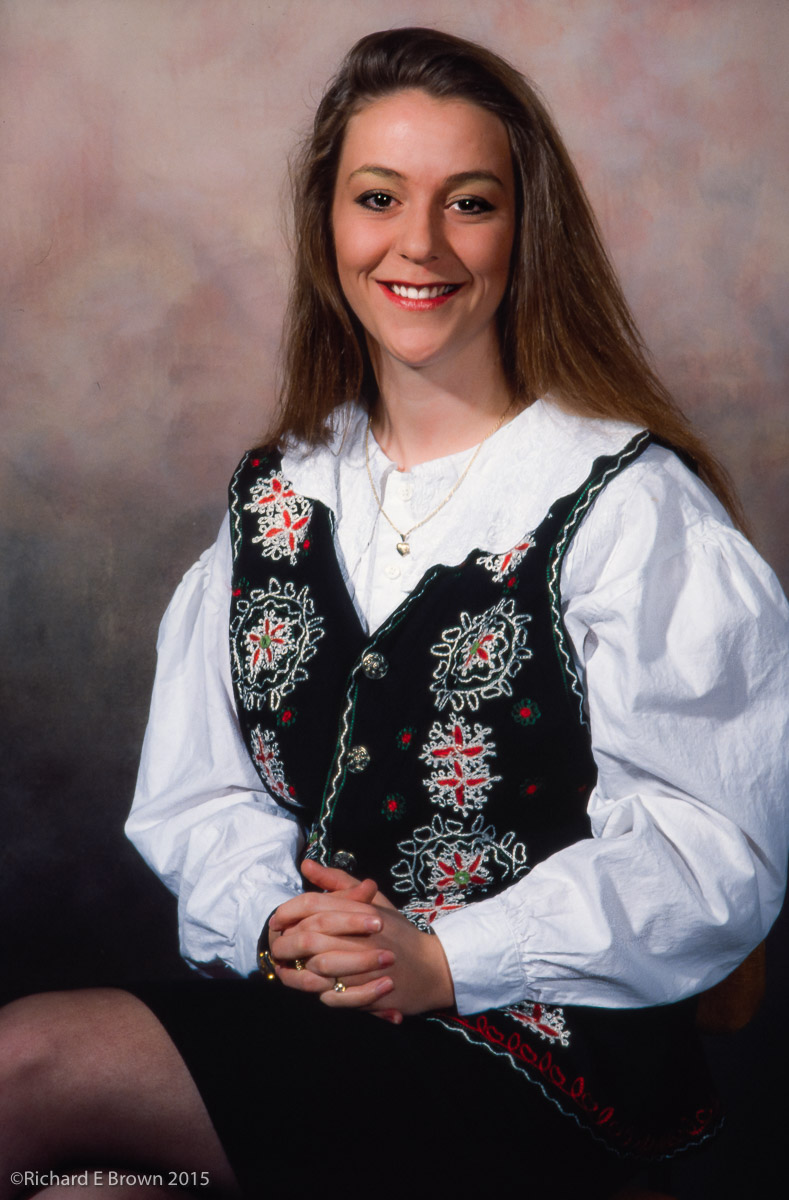
Canon A1 Fujichrome Slide Film Taken in the late 1980’s
I am slowly getting the hang of film scanning. Getting everything clean is the first and major step, after that is relatively simple.
I am using SilverFast which came free with my scanner.
The way I am working is as follows.
Step One clean and mount the film and scanner plate
Select Frames and delete all to get rid of the old frame settings
Select Pre-Scan, at this point it does a basic scan
Select Frames, Find Frames and select the appropriate film holder, in this case Filmstrip 35mm
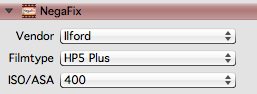
I then select my resolution 6400 ppi for film and then select the film Vendor, film type and ISO.
Then its a tweak to the Midtones to make the files a little flatter and easier to working on post production, I use +5.
Select Copy settings to all frames
Now for the time consuming part.
Zoom into the first frame and adjust the frame to capture all the image
Tweak the histogram if necessary
Go to next frame and repeat
Once all frames are done I then select batch scan and have it uniquely number each file and place them in a watch folder.
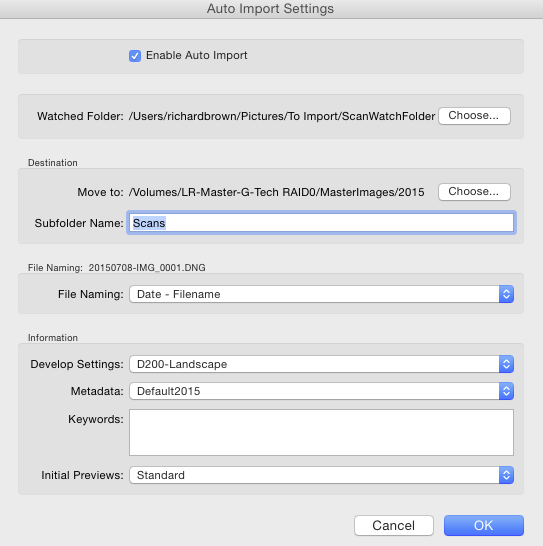
Its then over to Lightroom where I configure Auto Import. I have found the the default developer settings I use for my Nikon DSLR are a good starting point and I have Lightroom add the current date to the scans filename.
I now go off and have a cup of coffee and leave the computer to do its stuff, the scanner putting the images into the watch folder and then Lightroom automatically importing them, adding some developer settings and meta data and adding them to my main Catalogue image store. If you have a lot of images to scan you can then use this time to prepare your next batch of scans. The Epson V850 came with two sets of holders for each main type of film, 35mm mounted slides, 35mm film, medium format and 5 x 4 large format.
I used to have the issue that many photographers suffer from; you send you image off to be printed and it comes back to dark.
Now my images come back much closer to how I envisaged them, and when printed by myself they are very close to what I see on the screen.
So what has changed, well first it got better when I started profiling my screen, usb screen profilers do not cost that much money and are definitely worth it. Secondly I now use a NEC SpectraView Reference Monitor, this is as close to Adobe RGB as current displays can get and gives a very accurate display.
Lastly I now soft proof using paper profiles from the manufactures website.
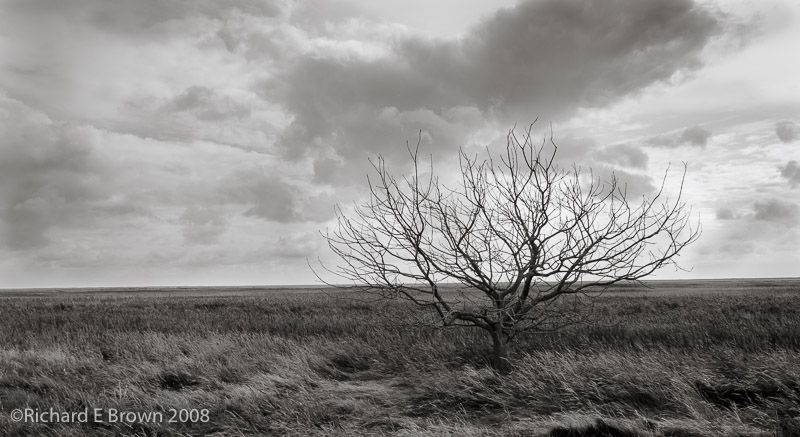
I recently came to print one of my Black & White on a new paper I had not used before (Tecco PL285 Luster). The image was quite dark and moody of a bleak marsh and a single bare tree.
I have split toned the image and the highlights have a slight blue tint and the shadows and mid tones a light sepia tint.
In Lightroom V5.3 I went into soft proofing and selected my paper profile, all of a sudden the image looked blue. This paper has a definite cold tint. I created a soft proof copy and adjusted the mid tone contrast to suit the paper and removed my blue tint from the image. I then tinted the image quite heavily all over sepia until the soft proofed image looked like the original.
Calibrated for Print
I then printed and what came out looked like the original print, soft proofing in a colour managed environment had worked. If you compare the bottom image with the top its hard to believe that when the bottom image is printed on Tecco PL285 Luster it looks like the top image but it does.
Soft proofing is still an inexact art, a monitor no matter how good and yet match the colour gamut but it is currently the best way forward.
In many ways it shows how arguments of cameras based on jpegs displayed on a web page are ridiculous, you cannot judge a camera from the web. Ultimately only you shooting with it in your style, your kind of photographs and putting the resulting files through your work flow are going to show if that camera suites you. And a camera that suites you may not suite others.