Nikon DF is here

20131105-071231.jpg

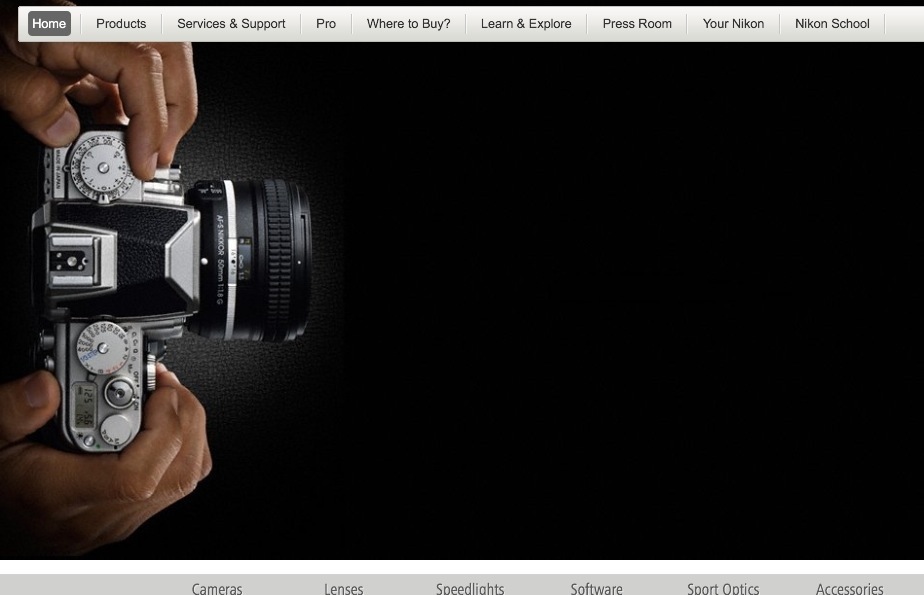
So after all the rumours and for Nikon a clever advertising campaign; not something they are usually good at the new ‘Retro’ Nikon was announced.

It actually looks quite good, and a few years ago would have been a must buy for me. For general use the DF hits the sweet spot in many areas. Full frame, smaller and lighter then many DSLR’s of this spec and 16 MP which to me is about ideal. While I would love something like a D800 for studio use and weddings it’s 36 MP means slow work flow. I would need to invest in new computers, not something I am intending, unless someone wants to buy me an 11 inch MacBook Air for Christmas to fit in my camera bag or the new MacPro for my office.

At 16 MP it should have excellent noise and would be very useful in a church during Weddings, so I might still get one in a years time when prices start to slip. As a carry around camera my retro needs are now fulfilled by my little Leica M4 and Leica M8.

I have not yet had a good look at the spec it sounds very D4 like in some areas if that is the case then this will be one sweet ‘Retro’ Camera.

Retro Cool – Nikon DF

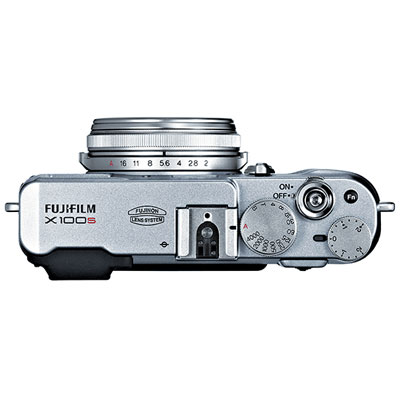
While Leica with the M has been the ultimate retro camera, many camera manufactures now are playing the retro card.  Fuji in particular have been very good at this with some of the X cameras.

Fuji X100s


The last few weeks has seen more and more rumours spreading about a retro Nikon coming soon.  Many have said it will be a modern digital Nikon FM.  I have the Nikon FM2 and its one of the best all mechanical 35mm SLR’s available.  Hopefully Nikon will announce it on Tuesday and we will know for sure.

Looking out for other road users

In days gone by, a wave, a nod of the head etc was exchanged between motorists when they met.  Of course in those days there were few motor vehicles on the road but even today motorcyclists often nod their heads or give a quick wave to each other.

It seems now its a very selfish environment on the road, which everyone only caring about themselves.

Today on the commute into Lincoln, the traffic was stationary as we approached the centre of the city.  I switched to the middle of the road and carefully filtered on through at a steady fast walking pace (I never filter above 20 mph no matter how safe things look).  Looking out for lane switchers, U turning traffic and especially being careful at junctions I eventually made my way through.

I soon came to the cause of the traffic jam.  An ambulance was parked across the road blocking the traffic.  On the ground was a scooter and beside it a young woman being treated by the paramedics.

While we all have to dress appropriately on bikes and scooters and take extreme care when filtering and when near junctions or passing cars, its up to all road users to look after ourselves and to look out for others to stop things like this happening.  Who was to blame, I don’t no and I don’t care.  The poor scooter rider should have been better dressed with protective clothing, possibly filtering with more care.  The car driver should have been taking more notice of what was going around.  When things like this happen its all our faults and its the responsibility of all road users to lookout for each other.

Take care out there and keep it sticky side down.

People Photography and telling a Story

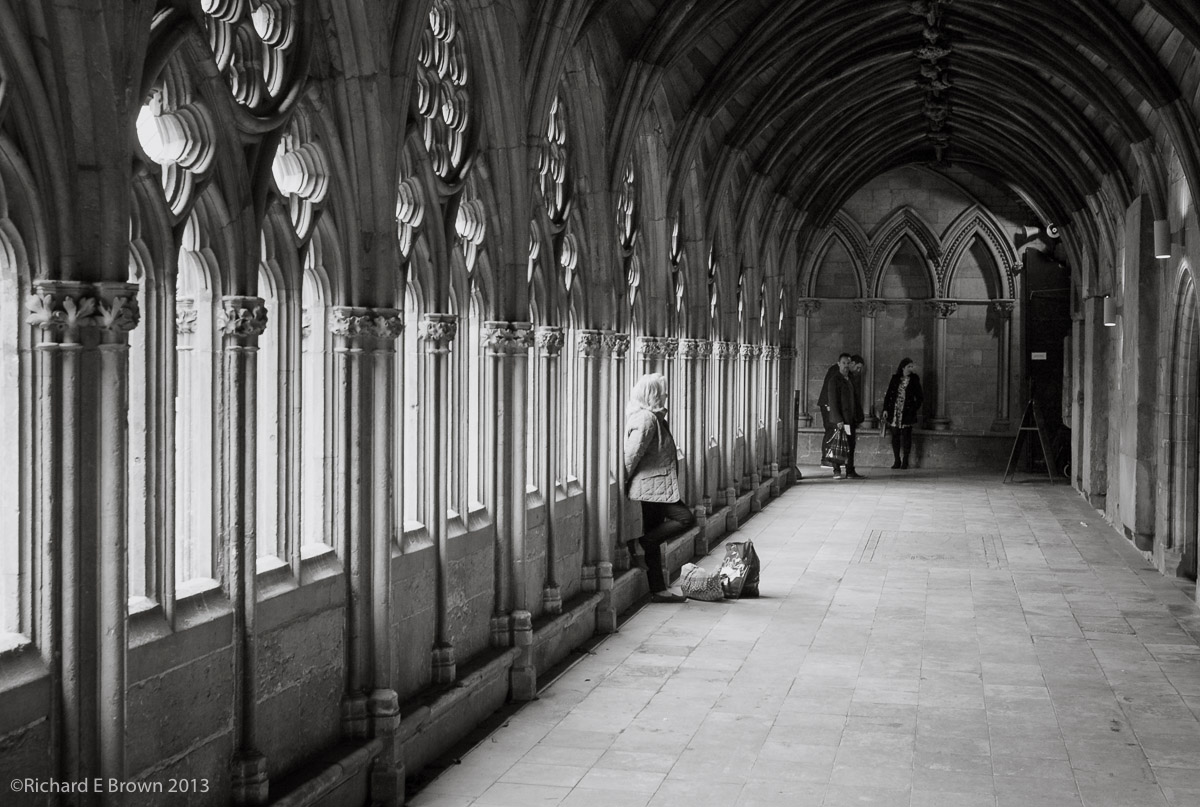
LookingStreet Photography is generally all about shooting people, generally without them noticing.  The stronger images tend to be ones that tell a story, ask a question or are of a decisive moment.

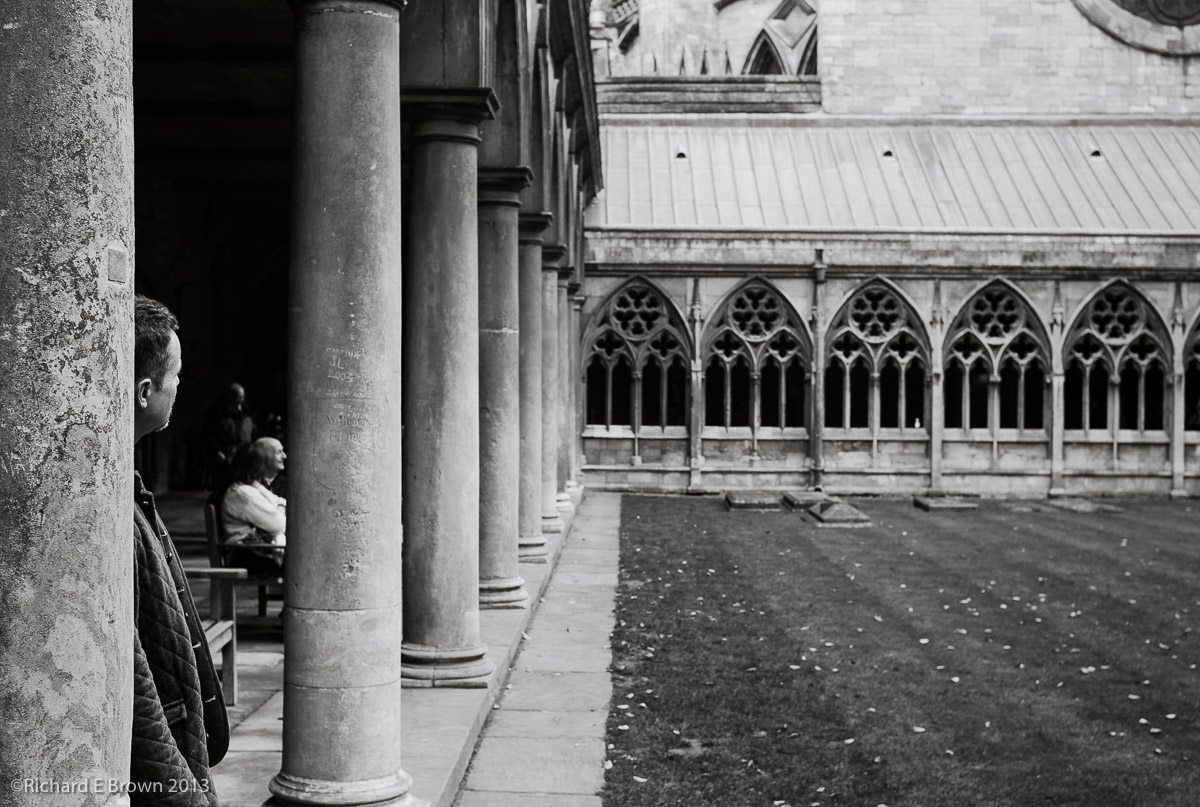
This example I took at the weekend is more a question kind of image, you wonder what the man is thinking about as he takes in the magnificent view of Lincolnshire Cathedral.


Food and Farming + Sausage Festival

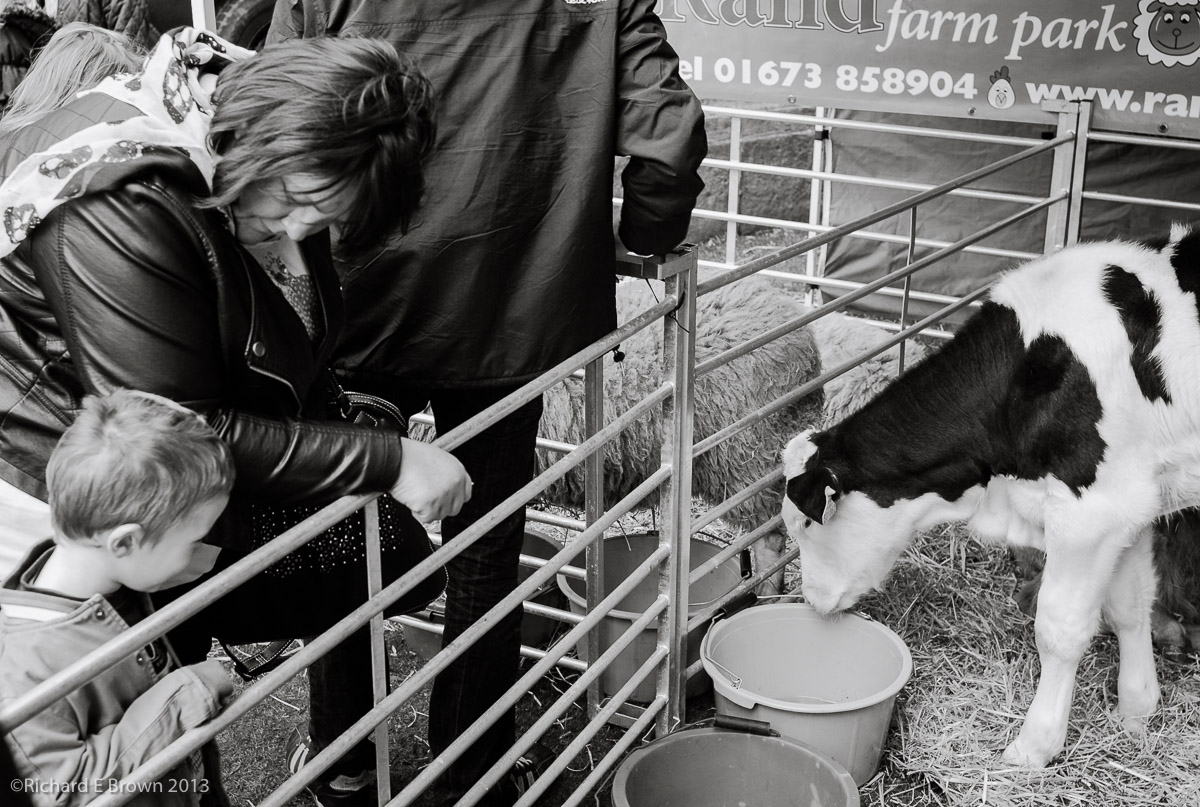
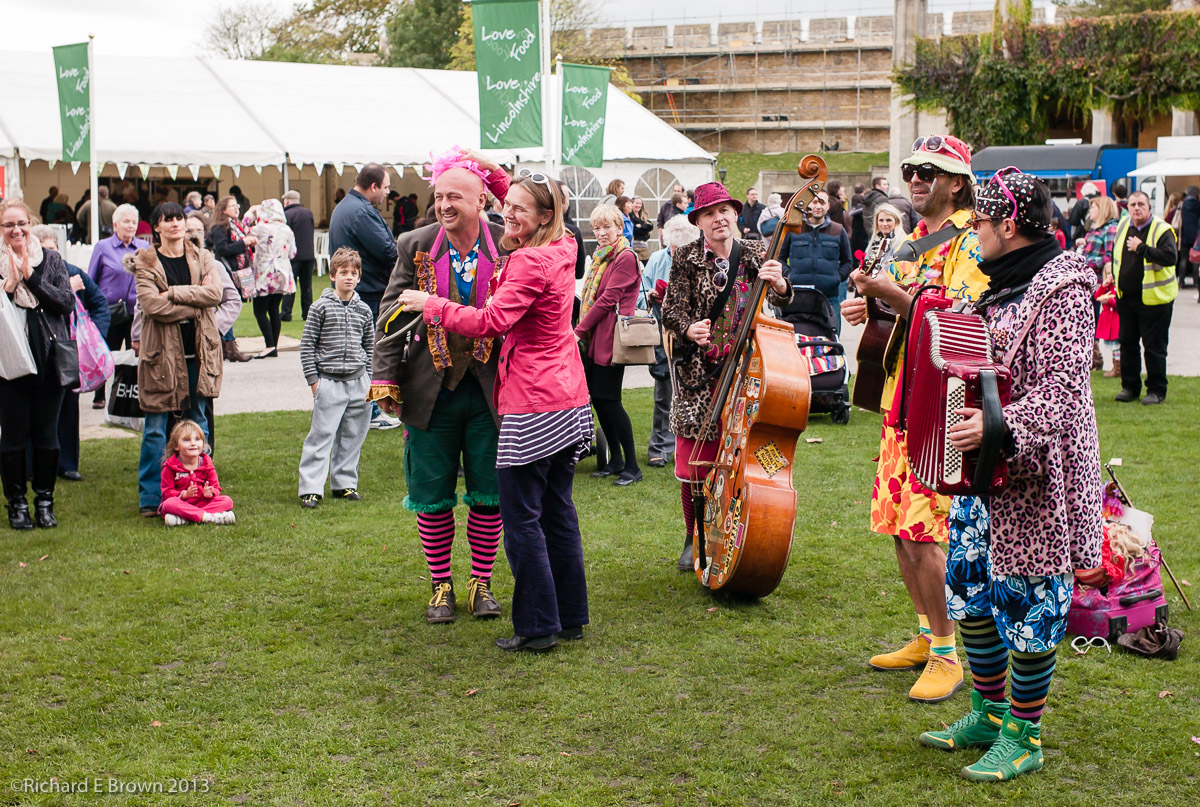
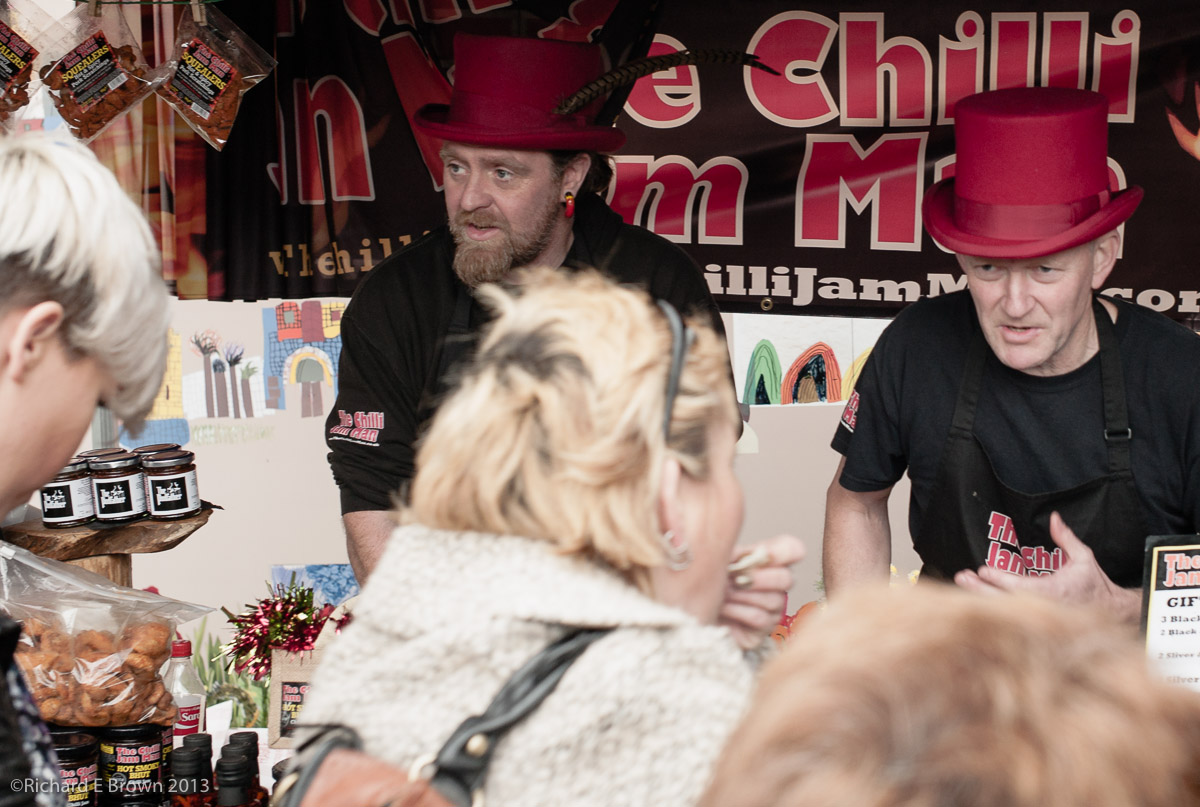
This weekend was the annual Lincolnshire Sausage Festival; and we also had a celebration of Food and Farming in Lincoln Cathedral.  Lots of interesting characters, stalls and things to taste and photograph.

Testing and a final install of Mavericks

OS X MavericksWell after my blog post yesterday about creating an OS X Mavericks install disk; what did I do with it?

Well, I created another partition on that external drive and then booted from my new install disk and installed Mavericks to the fresh partition.  I then imported my apps and some photographic data.

It was then time to test my applications.

For all my key applications, I had already visited the various software manufactures websites and confirmed that their software worked, but I wanted to know for myself.  Just because it works does not mean some aspect of work flow has not changed that could be a show stopper for me.

I was pleased to find that everything worked as before.  Some of the underlying tech is fantastic, with the way it speeds up the interface, reschedules processor tasks for more efficiency etc.  What the user notices is a speeder machine, a more focused and polished interface, a better calendar and I love maps and iBooks on the desktop.

For Mac users and iOS users this has been a very busy few days.  Lots and lots of app updates, a major OS update for iPhone, iPad, Apple TV and the Mac.  Major pieces of software have been made free for users with the latest OS’es or new Hardware.

If your setting up iCloud Keychain then be patient, Apple’s servers are pretty busy at the moment.

Creating a OS X Mavericks Install Disk

Back in October last year I blogged on how to create a OS X Moutain Lion Install disk, as the OS was download only.  Tuesday saw the release of the latest Mac OS, OS X Mavericks; yes gone are the big cats that saw us through the previous decade, now it seems we have place names, starting with Apple’s own backyard and Mavericks, named after Mavericks Beach I believe.

If your still after my original blog post you can find it here:

https://brown-family.org.uk/creating-a-mountain-lion-install-disk/

Its posible worth a read as it covers in slightly more detail some of the techniques we are going to use below.
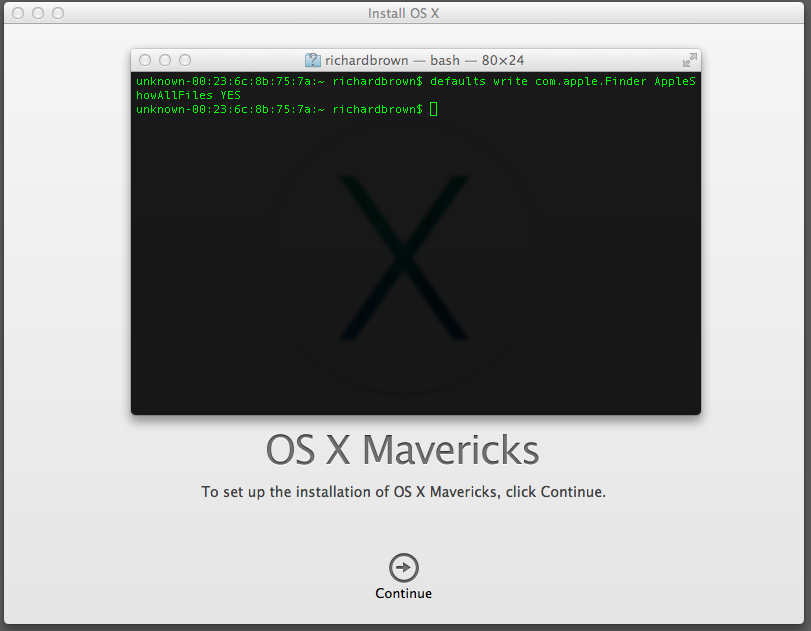
Terminal Screen Shot

Creating an install disk is basically the same as before but with a minor exception.  The install dmg cannot be just restored theres a few extra steps involved, and this means we need a little prep at the start.

First job is to make some of the hidden system files you are going to need visible, so step one is to get are hands dirty and drop to the command line, not something most Mac users are used to, but with OS X being UNIX its incredibly powerful.

Step 1

Launch Terminal; You will find this under Applications/Utilities, or if your lazy like me hold down the Command Key and hit the space bar, then type terminal and press return.

At the terminal command prompt type:

defaults write com.apple.Finder AppleShowAllFiles Yes

Then press Return.

Then type:

killall Finder

And press return again.  This will cause finder to restart but with the show all files settings as defaults.

Step 2

You know need the OS X installer which can be downloaded from the Mac App Store free of charge; nice one Apple!

Step 3

Once Downloaded you will be presented with the OS X install screen, ignore this for now and go and look in the Application folder.  Here you will find the installer.  Now that it is downloaded copy the install to a couple of old harddisks to keep it safe, if you have an so download speed like me then you will not be wanted to download it again.  Ctrl-Click and select ‘Show Package Contents’.  Browse to Contents/SharedSupport, find the InstallESD.dmg file and double click it to mount it.

Step 4

In the mounted dmg find the BaseSystem.dmg file this file is hidden and cannot be found unless you followed the first step.  Now Launch Disk Utility and drag your destination disk to the destination field and the BaseSystem.dmg file to the Source field.
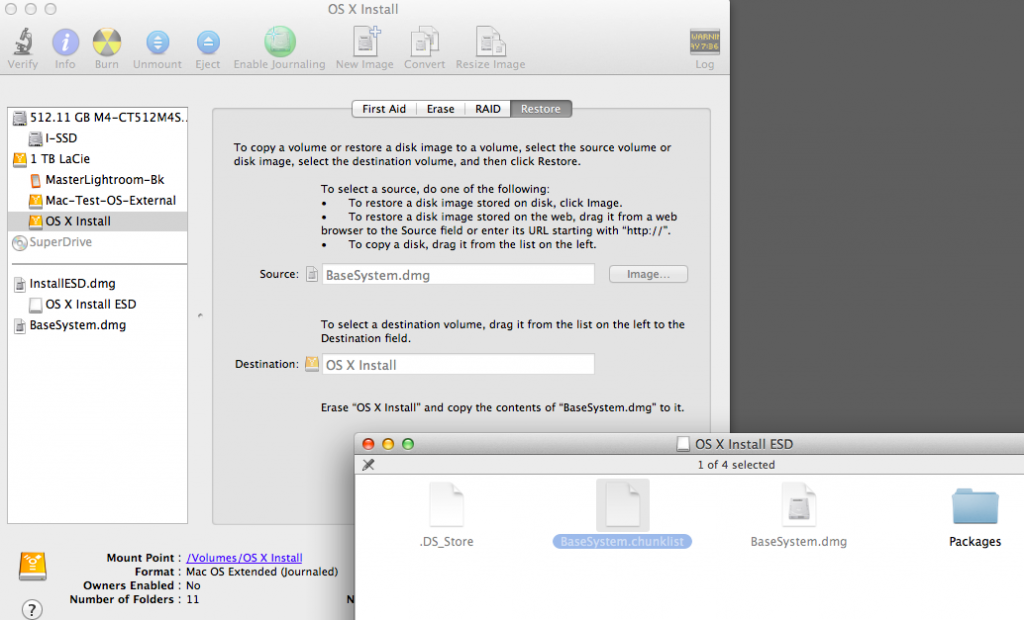
Restore image Click Restore.

After a minute or so depending on the speed of the disk you are restoring to; you will now have a disk called OS X Base System.  You now need to browse into System/Installation.  Here you will find an alias for Packages.  This needs deleting.

Step 5

Find the full Packages folder from the root of the mounted InstallESD volume and copy it to the where you deleted the alias from.

You should now have a bootable OS X Install drive.

Step 6

Lastly you need to set your finder defaults back to normal.

At the terminal command prompt type:

defaults write com.apple.Finder AppleShowAllFiles No

Then press Return.

Then type:

killall Finder


If like me you want to give the new OS a good test but not yet install on your live install disk then you can use tools like SuperDuper clone you install disk to an external disk, boot with your new install disk and install to the other external disk, then boot from it and test everything.  Only once you are happy you can upgrade your main disk, but remember to have a time machine backup or a clone of it just in case.
A big day for Apple

Apple had a press conference today and as well as the expected iPad announcements there were a few extra announcements.

Of most interest to me was the announcement of the latest version of Mac OS X. I’ll have to check with Adobe and a few other software manufactures of software to see if everything is compatible and I may install on a separate hard disk first to test before upgrading my main system.

The big thing from Apple was that all the software updates are free, a great move.

Not announced but also available today is another iOS update. 7.03 was which as well as a bug fix also includes the new iCloud KeyChain.

Updating my iPhone now.

Office Planning

With the house move now complete, though we still have stuff in storage, I have started to think about planning my office.

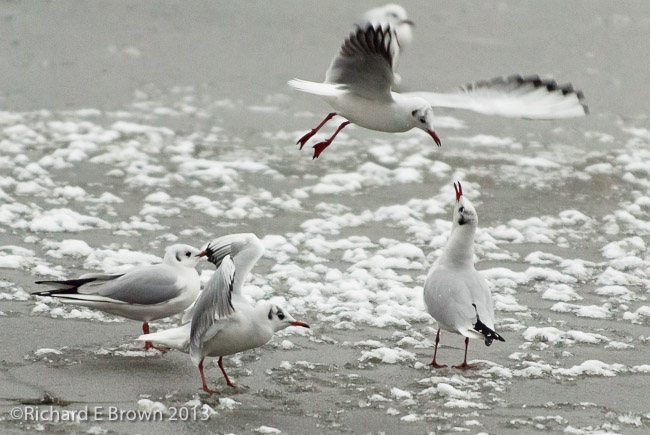
Gulls over Ice

While having breakfast yesterday morning, I was enjoying the view of the Blackbirds darting into the Yew Bushes. It made me think about the Photographer Moose Peterson. He has a long lens mounted on the side of his desk and a view straight out into his garden.

With the right desk positioning I may be able to set up something similar. I’ll certainly be get my office and desk straight before even thinking about the studio space.