Stuck Alias on Side Bar

I am a relatively new Mac User. My day job in IT means I deal with Windows in all its flavours, Linux – Redhat, and Solaris.

At home I switched from Windows to Linux – Fedora, many years ago, but as I started to do more digital photography, I needed an OS that was supported by the main players in digital photography.

So while my home server is still Linux, for my personal computer I switched to the Mac. If you want to know why, well its was just because I had never used one before, and I love learning new OS’s. This possibly explains why I have so many phones, running everything from Symbian, Windows Mobile, and iOS.

I have now upgraded to Apple’s latest and greatest OS, Lion. Or OS X (10.7). After the upgrade I felt the need to have a bit of a tidy up. I had a few dead aliases (shortcuts ) on the side bar to old applications that I had gotten rid of during the upgrade.

But one refused to go, the normal technique, to just drag it off the side bar and watching it disappear in a puff of smoke did not work.

I checked Apple’s support forums and found several ways of getting rid of stuck Aliases.

If its really stuck then open up the command line and delete the com.apple.sidebarlists.plist from your user/Library/Preferences folder. Log out and back in.

It should reset side bar to defaults.

But I then found a far easier way, which I had to admit, did make me feel very stupid. To force it to go just hold down the command key and then just drag it off, this forces it to go.

Outdoor Test Shoot

Well I have an outdoor test shoot booked for a few days time.  A lovely dancer is going to model for me and we have a private location with parking and the land owners permission.

Cannot wait!

Still my normal pre-shoot checks to do and a final shot list and clothes list to sort.  The only thing I cannot really plan for is the weather.

Fingers crossed.


Scouting for Girls – well locations

No, not scouting for girls but scouting for locations to shoot models.

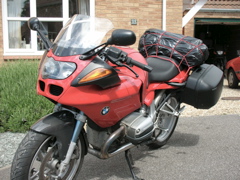
Had a fun day today, well, the morning was not so fun as we spent it at the gym, but then it was off on our lovely BMW R1200GS to explore the East Coast.

Earlier in the week, I had been using the internet to research possible areas where I could have an outdoor photo shoot.  Now with the best three locations book marked in my Garmin GPS, we went off to check them out.

A good scenic location, parking and privacy were the key attributes I was after.  Holding an outdoor shoot is always problematic, with this being the British Isles, the weather is always trouble.  Any scenic location that has parking generally will have privacy issues, and of course getting permission from the land owners also has to be considered.

A quick portrait or landscape shoot you may risk not getting permission, but with models, extensive camera and lighting equipment its best to plan well ahead and get the permissions you require.

Everything is now just about sorted, I just need to pick a date and finalise which models I am going to use.  I feel a test shoot coming up.

Window Light

Workflow – importing and backing up

Workflow. Something many photographers need to consider.

  • Importing your photographs
  • Backing up your photographs
  • Processing
  • Digital Asset Management
  • Metadata, keywording
  • Choosing your Picks
  • Choosing your Selects
  • Final imaging processing
  • Long Term Storage

Thats a lot to consider, and i’ll not go into it all today in this post but lets consider the first part.

Before I start, let me suggest you get yourself a good DAM program (Digital Asset Management). If I had to pick one it would be either Adobe’s Photoshop Lightroom or Apple’s Aperture program. These two programs enable you to handle the processing, DAM, and metadata and keywording. They can also handle 90% of your post processing needs, meaning you need to spend less time in your heavy duty pixel wrangler program (eg GIMP/Photoshop CS5/Coral Paintshop Pro).

  • Importing your photographs
  • Backing up your photographs

Your photos are on your Compact Flash/ Secure Digital card safe in your camera. But what next.

Well for a start they are not safe, you only have one copy, you need to get those files backed up so you have two copies. First rule, don’t connect your camera to your computer. Take the cards out and put them in a card reader. If your in the field many photographers use devices such as Epson Photo Viewer, some are using Apple iPad’s via a camera connection kit, as am I now.

If your using a laptop, then for myself, I back them up to the local hard disk. I pack the memory cards and the laptop seperately. If one gets lost the images are still safe.

Once back at the hotel/home/office, I then import the photo’s into my DAM program. For me this is Adobe Lightroom, the import preset applies basic metadata information and keyword details. The preset also copies the files to an external hard drive. This now gives me three copies of the files. One still on the cards, one on the laptop and one on the external hard drive. At the end of the day I run a backup (if your an Apple Mac User with OS 10.5, 10.6 or 10.7, use the built in Time Machine Application or I recommend you buy the application SuperDuper) this does a complete backup of my laptop including my photos, this now gives me a fourth copy of the photographs. Its now at this point i’ll risk wiping the cards.

Sound like overkill, well it does not take any real effort when you have the right products, and how much are the images worth to you?

Portable Studio

Saturday I spent the afternoon having a bit of fun.

The great thing about C-Stands is there versatility, with the boom arms fitted they not only light stands but also background stands. It was this versatility I wanted to test to day.

Clearing some space I set up the C-Stands with there boom arms, and used them to support a background roll of paper.

I then set up my Elinchrom Rotalux softbox using my portable Elinchrom Quadra Flashes to provide the illumination. One head in the soft box and one pointing at the background.

Using my long suffering and ever patient wife Caroline as a test model, and using my light meter, I soon had everything set up to give professional high quality results.

Family Birthday Party

We had a family party today to celebrate a birthday.  While the children were playing I took a few snaps.  Unusually for me I set the camera and flash to auto and just shot away.  As usual it was a mistake.  Shots like the one above, shooting into the sun, are always tricky for cameras.  I really should learn to trust myself.

C-Stands

You might have spotted that I recently tweeted about my new C-Stands.

A number of you have asked “What is a C Stand”.

Well as I discovered, a light weight light stand is sometimes no good.  An outdoor photo shoot a few months ago with the lovely Ashleigh nearly turned to disaster.  I had a flash and brolly on a light weight light stand when a sudden gust of wind took the whole lot, and I had to chase it down.

Well my lovely wife has promised me, that see will make me some very useful sandbags, but I felt I needed heavy duty stands.  The C Stand with boom arms is an incredibly versatile stand.  Heavy, sturdy, with the boom arm capable of holding a hair light above the model and support a background.

While difficult to get to the destination, once there the heavy stand is essential for out door flash use.  Outdoor flash is a favourite of mine, off camera, either as fill in or as the main light, using the sun as fill, it gives great results.

Even if you only have a standard hot shoe flash.  Give off camera flash in daylight a go.  Its well worth the effort.